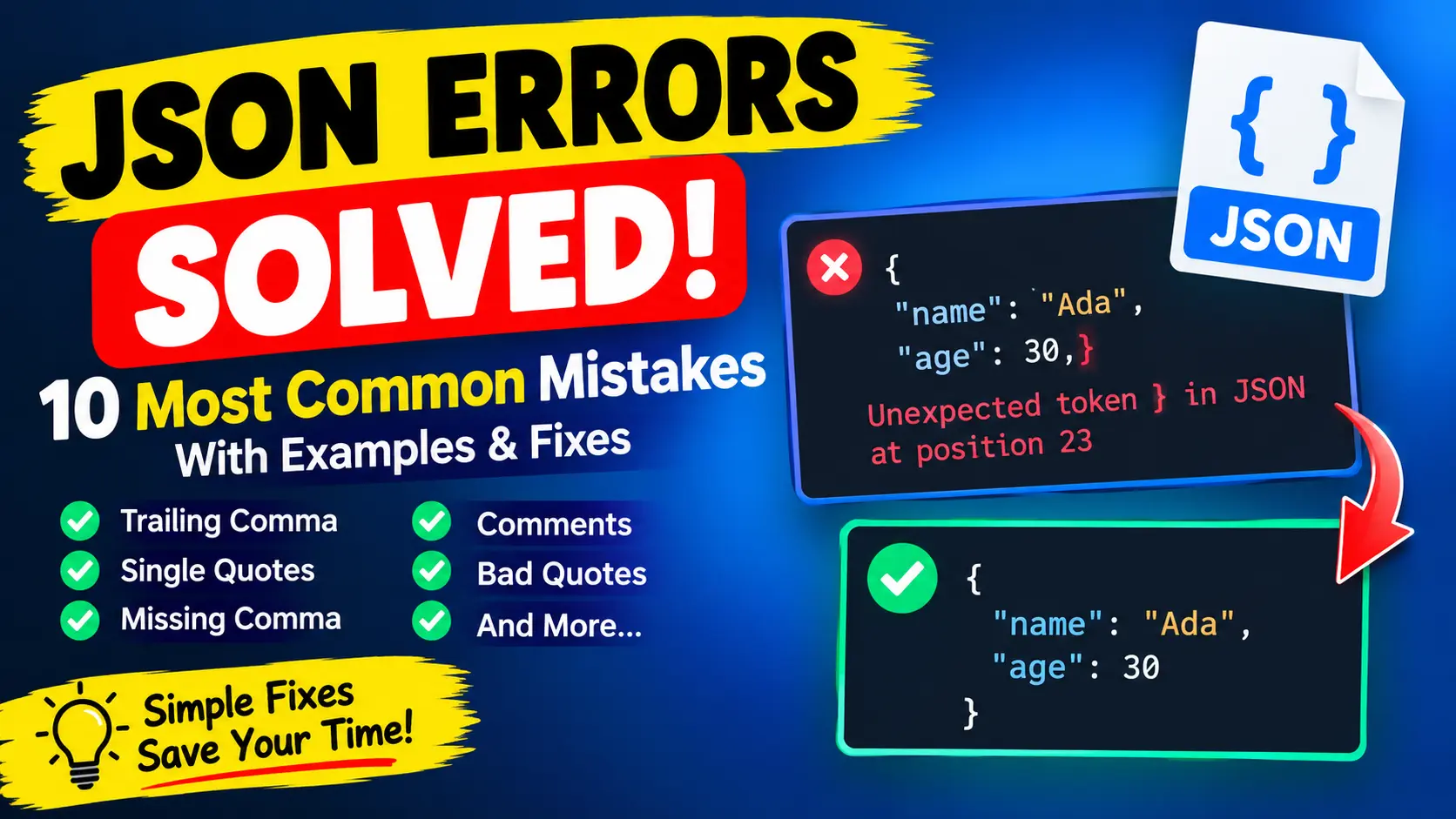
You paste some JSON into an app, an API client or a config file, and instead of data you get a message such as Unexpected token } in JSON at position 23. The message looks cryptic, but the cause is almost always small: one comma too many, one quotation mark of the wrong kind or one character that slipped in when the text was copied.
This guide explains how to read these messages and covers the ten most common causes. Each one comes with a broken example, the message a real parser prints for it and the corrected JSON. The messages shown here were produced by the JavaScript engine in Node.js 22, which is the same V8 engine that runs in Chrome and Edge. You can paste any example into the JSON Validator and see the result yourself.
How to read a JSON error message
A JSON parser reads your text from left to right and stops at the first thing that breaks the rules. It reports only that one problem. When you fix it and run the parser again, it may report the next one, which is why errors seem to appear one at a time.
Three things help you read the message:
- The position counts characters from zero. Position 23 is the 24th character of the text. Recent engines also print the line and column, which start at 1, so the same spot is line 1, column 24.
- The real mistake is often just before the position. A parser notices a problem when it reaches a character it did not expect. A missing comma, for example, is reported at the start of the next key.
- The wording depends on the program and its version. Older versions of Chrome and Node.js say
Unexpected token } in JSON at position 23where recent ones sayExpected double-quoted property name in JSON at position 23. Firefox, Safari, Python and PHP use their own wording. Python, for the same text, saysExpecting property name enclosed in double quotes: line 1 column 24 (char 23). The cause is identical.
The rules the parser enforces are defined in RFC 8259, and the JavaScript behaviour is documented on MDN. In short: strings and keys use double quotes, items are separated by commas with none after the last one, and only objects, arrays, strings, numbers, true, false and null are allowed.
The 10 most common JSON errors
1. A trailing comma
A comma after the last item is allowed in JavaScript and Python, so it is easy to type out of habit. JSON does not allow it.
{"name":"Ada","age":30,}Message: Expected double-quoted property name in JSON at position 23 (line 1 column 24). Position 23 is the closing brace, because the parser expected another key after the comma. The same mistake in an array, [1,2,3,], gives Unexpected token ']'.
Fix: delete the comma after the last item.
{"name":"Ada","age":30}2. Single quotes or unquoted keys
JavaScript object literals accept {name: 'Ada'}. Strict JSON requires double quotes around every key and every string.
{'name':'Ada'}
{name:"Ada"}
Both lines produce the same message: Expected property name or '}' in JSON at position 1 (line 1 column 2). Position 1 is the first character after the opening brace, where a double-quoted key should start.
Fix: use double quotes everywhere.
{"name":"Ada"}This error often comes from copying an object out of source code or from a debugger instead of exporting real JSON.
3. A missing comma
{"a":1 "b":2}Message: Expected ',' or '}' after property value in JSON at position 7 (line 1 column 8). Position 7 is the opening quote of "b". The mistake is the missing comma just before it. Python reports the same text as Expecting ',' delimiter: line 1 column 8 (char 7).
Fix: put a comma between the two properties.
{"a":1,"b":2}This is the most common mistake when you edit a long file by hand, for instance when you add a new line in the middle of a list and forget the comma on the line above.
4. Comments
JSON has no comment syntax. A // or /* */ comment is an error, even though many editors let you write them.
{"a":1 // note
}
Message: Expected ',' or '}' after property value in JSON at position 7, where the slash starts.
Fix: remove the comment. If you need notes in a config file, check whether the program accepts a relaxed format. tsconfig.json and the VS Code settings file do allow comments, because their tools read JSON with comments (often called JSONC). package.json does not, because npm reads it as strict JSON. The same file extension can follow different rules in different programs, so check the documentation of the tool that reads the file.
5. A double quote inside a string
{"quote":"She said "hello""}Message: Expected ',' or '}' after property value in JSON at position 20 (line 1 column 21). The string ended at the second quotation mark, so the parser met the letter h where it expected a comma.
Fix: escape each quotation mark inside the string with a backslash.
{"quote":"She said \"hello\""}This usually happens when JSON is built by joining strings together in code. A real serializer such as JSON.stringify escapes every quotation mark for you.
6. A raw line break inside a string
A string must stay on one line. A real line break inside it is a bad control character.
{"text":"line one
line two"}
Message: Bad control character in string literal in JSON at position 17 (line 1 column 18). Position 17 is the line break itself. If a string is never closed, for example {"a":"hello}, the message is Unterminated string in JSON at position 12.
Fix: write the line break as the two characters \n, and a tab as \t.
{"text":"line one\nline two"}7. More than one JSON value in the text
{"id":1}{"id":2}Message: Unexpected non-whitespace character after JSON at position 8 (line 1 column 9). A document may contain only one top-level value, and the parser found a second one starting at position 8.
Fix: wrap the items in an array and separate them with a comma.
[{"id":1},{"id":2}]Log files and some APIs use a layout called JSON Lines, where every line is a separate JSON value. Such a file is correct as it stands, but you have to parse it one line at a time instead of as a single document.
8. Values that JSON does not have, and badly written numbers
Python prints True, False and None, and JavaScript has undefined and NaN. None of them exist in JSON, which uses true, false and null.
{"active": True}Message: Unexpected token 'T', "{"active": True}" is not valid JSON. Parsing the text undefined gives "undefined" is not valid JSON.
A very common source of this error in Python is printing a dictionary instead of serializing it. Compare the two:
d = {'name': 'Ada', 'active': True, 'nick': None}

str(d)
{'name': 'Ada', 'active': True, 'nick': None}

json.dumps(d)
{"name": "Ada", "active": true, "nick": null}
Only the last line is valid JSON. Numbers have rules too: no leading zeros, no plus sign and digits on both sides of a decimal point. {"zip":007} gives Unexpected number in JSON at position 8, and {"n":+5} and {"n":.5} give an Unexpected token message. Write 7, 5 and 0.5, and keep identifiers with leading zeros, such as ZIP codes, as strings: "007".
9. Empty or cut-off input
An empty string gives the shortest message of all: Unexpected end of JSON input. In web code it appears when you call response.json() on a response with no body, such as a 204 No Content reply or a request that failed before the server sent data.
Text that stops in the middle is reported at the end of the input. For {"name":"Ada","tags":["dev","admin" the message is Expected ',' or ']' after array element in JSON at position 35, and 35 is the length of the text. Look for a missing closing bracket or a copy that stopped too early.
Fix: check that the data was received completely, that your copy includes the last character, and that every { and [ has its closing partner. A value that was left out, as in {"a":}, gives Unexpected token '}'.
10. The server sent HTML, not JSON
This is the one behind the best-known message of all: Unexpected token '<', "<!DOCTYPE "... is not valid JSON. Older engines print Unexpected token < in JSON at position 0.
The first character, <, is the start of an HTML page. Your code asked for JSON, but the server returned a web page, usually an error page, a login page or a "not found" page. The JSON itself is not wrong, because there is no JSON in the response at all.
Fix: open the URL in a browser or in your network panel and look at what the server really returns. Check the address, the HTTP status code, the authentication and the Content-Type header. Only when the response is JSON does it make sense to look for syntax mistakes.
Errors that are hard to see
Some mistakes look perfectly fine on screen.
- Curly quotes. Word processors, chat apps and some web pages replace straight quotes with curly ones. The text
{“a”:1}looks right but givesExpected property name or '}' in JSON at position 1. Replace the curly quotes with straight double quotes. - A byte order mark. Some editors add an invisible character at the start of a file. The parser then complains about an unexpected token at the very start, although the first visible character is a normal brace. Retype the first character, or save the file as UTF-8 without a BOM.
- Non-breaking spaces. Text copied from web pages can contain spaces that look normal but are different characters. If a message points to a place where nothing looks wrong, delete the whitespace there and type it again.
If you suspect an invisible character, paste the text into a plain-text editor first, or compare it with a version you know is clean using the Text Diff Checker.
When JSON is valid but still wrong
A validator checks syntax only. These cases pass the check and can still cause trouble:
- Large numbers lose precision. JavaScript reads numbers as 64-bit floating-point values, so
12345678901234567890becomes12345678901234567000. Integers above 9007199254740991 are not safe. Send long ids as strings. - Duplicate keys are not an error.
{"a":1,"a":2}parses without a message, and JavaScript keeps the last value, so you get{"a":2}. Two systems may keep different ones. - Serializing can silently drop data.
JSON.stringifyleaves out properties whose value isundefinedor a function, and turnsNaNintonull. The object{a: undefined, b: NaN}becomes{"b":null}. - The structure may not match what the application expects. A field can be named differently, hold a string instead of a number or be missing. Syntax validation cannot see this. Compare the data with the API documentation or check it against a JSON Schema.
A worked example: fixing a broken config file
Here is a settings file with several mistakes at once. Because the parser reports one error at a time, the fix takes a few rounds. The messages below are real output.
{
  // application settings
  "name": "shop-api",
  "port": 8080,
  "features": {
    'cache': true,
    "debug": False,
  }
}- Round 1.
Expected property name or '}' in JSON at position 4 (line 2 column 3). Line 2 holds the comment. Delete it. - Round 2.
Expected property name or '}' in JSON at position 60 (line 5 column 5). The line numbers now count from the shortened file, and line 5 is the one with'cache'. Change the single quotes to double quotes. - Round 3.
Unexpected token 'F'.Falseis a Python spelling. Change it tofalse. - Round 4.
Expected double-quoted property name in JSON at position 97 (line 7 column 3). Line 7 is the closing brace that follows"debug": false,, so the comma before it has to go.
The corrected file:
{
  "name": "shop-api",
  "port": 8080,
  "features": {
    "cache": true,
    "debug": false
  }
}
You can do all four rounds in the JSON Validator, and then use the JSON Formatter to tidy the indentation.
How to prevent JSON errors
- Never build JSON by joining strings. Create the data as an object or a dictionary and let
JSON.stringify,json.dumpsor the serializer of your language write the text. It escapes quotation marks and line breaks correctly. - Use an editor that checks JSON while you type. Most code editors underline trailing commas, missing commas and unclosed brackets immediately.
- Format before you edit. A readable, indented file makes a missing comma or bracket much easier to see. The JSON Formatter does this in one click, and the JSON Minifier turns it back into a compact line when you need to send it.
- Validate before you send or commit. A quick check of a payload or a config file costs a few seconds, and a failed deployment costs far more.
- Look at the raw response first. When an API call fails with a JSON error, read the body and the status code before you touch the parsing code.
A quick checklist when you see a JSON error
- Read the position, line and column, and look at the character just before it.
- Check for a trailing comma or a missing comma.
- Check that every key and string uses straight double quotes.
- Remove comments and replace
True,None,undefinedandNaN. - Check for unescaped quotation marks or line breaks inside strings.
- Make sure there is exactly one top-level value and that every bracket is closed.
- If the error is at the very start, look for HTML, an empty response or an invisible character.
- Fix one error, run the parser again and repeat.
Summary
Most JSON errors fall into a small set of patterns, and the message tells you where the parser gave up, not necessarily where the mistake is. Read the position, look just before it and compare what you see with the ten causes above. For anything beyond a quick look, paste the text into the JSON Validator, fix the first error it reports and repeat until the JSON is valid.